






ApeX Omni gives traders a familiar order-book interface for going long or short on crypto – but without handing funds to a centralized exchange. Perpetual contracts have no expiry date, and ApeX supports up to 100x leverage on eligible markets, along with limit, market, and conditional orders.
Getting into a position is straightforward once an account is funded. You can choose a market, set your leverage and position size, select an order type, then hit Buy/Long or Sell/Short.
The platform also provides TP/SL orders, Post-Only and Reduce-Only controls, live funding data, and the information needed to track margin and liquidation.
Here is how the process works from start to finish. We are going to assume you have a basic knowledge of Perps trading – this is how to trade Perps on ApeX Omni specifically, rather than a beginner’s guide to this way of trading.
That said, let’s jump in. And keep an eye on the occasional bonus offers, like a 15 USDT Futures Bonus for new users.
What is ApeX Omni?
ApeX Omni is a decentralized perpetual exchange built around multichain liquidity and self-custody. It offers more than 100 perpetual contracts, including crypto and stock perps, with leverage reaching 100x on supported markets. Trading takes place without gas fees, while standard perpetual fees are 0.02% for makers and 0.05% for takers.
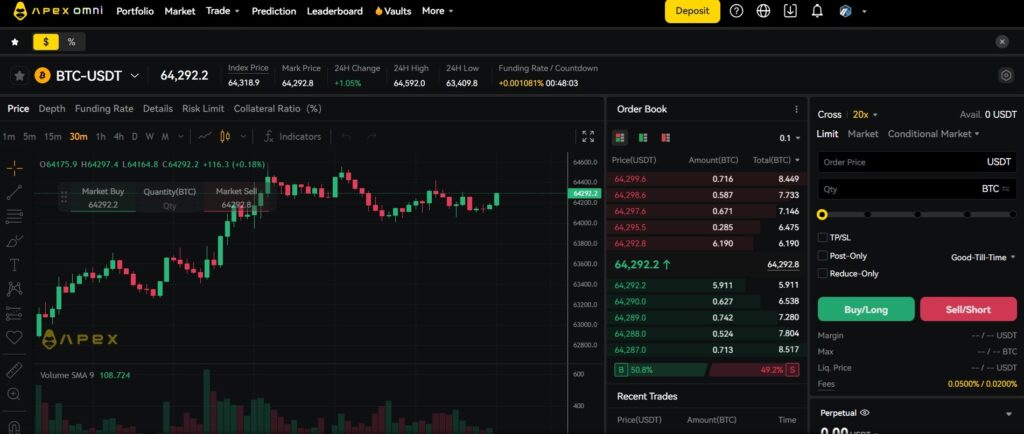
The platform uses zkLink-based infrastructure and zero-knowledge proofs for settlement, while traders retain control over their assets rather than depositing them with a conventional centralized exchange.
ApeX also allows users to create an Omni account with an email address or connect a crypto wallet directly.
How to Trade Perps on ApeX Omni
1. Create an ApeX Omni Account
Open ApeX Omni and create an account using either an email address or an existing crypto wallet.
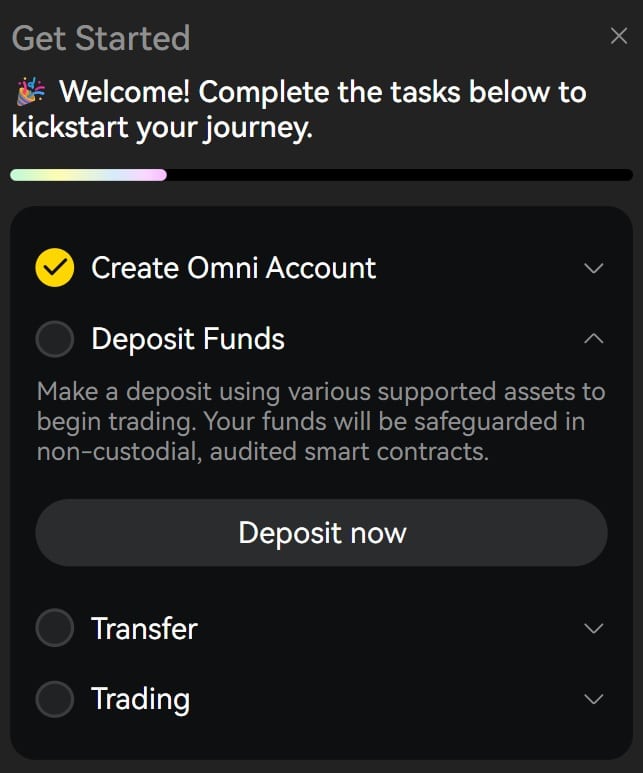
For email registration, enter an email address, confirm the verification code, and create the Omni account. Alternatively, connect a supported wallet and approve the requested signature. ApeX does not require KYC for its core perpetual trading service, and will spin up a self-custody wallet on your behalf if you sign up by email.
The platform’s Get Started panel tracks the initial process through four stages: Create Omni Account, Deposit Funds, Transfer, and Trading.
2. Deposit Funds and Transfer Them to Perps
Click Deposit and select the asset and blockchain network being used. Wallet users can choose an amount and confirm the transaction from their connected wallet, while email users can send crypto to the deposit address generated by ApeX.
Deposited assets initially enter the Funding Account. Before opening a perpetual position, select Transfer and move the required collateral from the Funding Account into the Perpetual account.
ApeX uses USDT as its main perpetual settlement asset and also supports cross-collateral trading, allowing supported alternative assets to contribute toward available margin.
3. Open the Perpetual Trading Screen and Choose a Market
From the current web interface, select Trade > Perpetual.
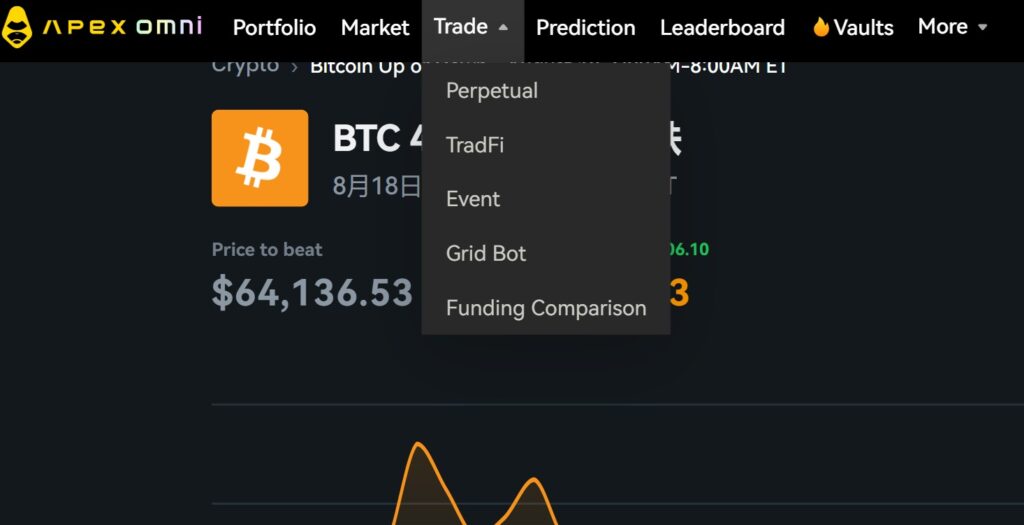
The market selector on the left side of the trading screen can then be used to select a contract, such as BTC-USDT. Alongside the chart, ApeX displays the Index Price, Mark Price, 24-hour price data, and the current funding rate with a countdown to the next payment.
The order book sits next to the chart, while the order ticket is positioned on the right.
4. Choose Leverage and Enter the Position Size
At the top of the order ticket, click the leverage figure – 20x in the example in our image – and choose the required level.
Higher leverage means less initial margin is required to control the same-sized position. The maximum available leverage varies by contract and position size, with ApeX offering up to 100x overall.
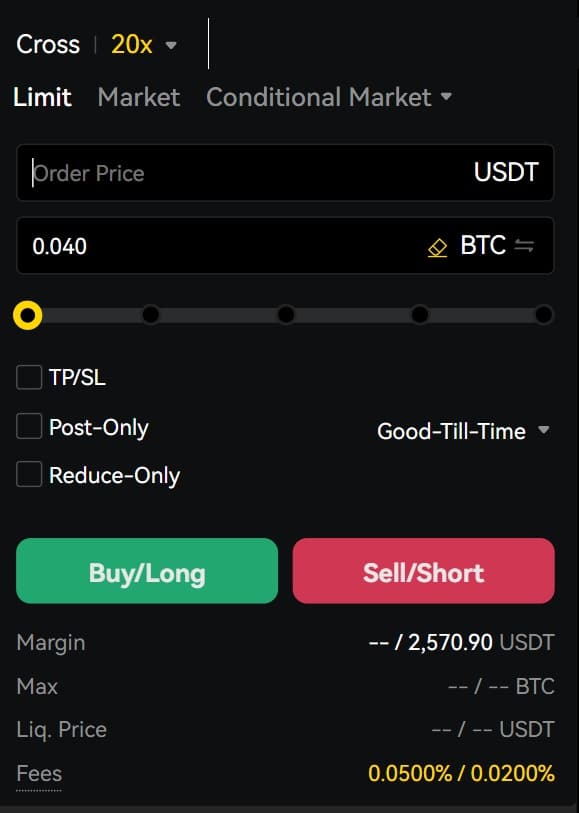
Next, enter the quantity to trade. For BTC-USDT, for example, the order can be sized in BTC. The slider below can also be used to size the order to the available margin in the account.
Before submitting, ApeX displays the required Margin, maximum available position, estimated Liquidation Price, and applicable trading fee underneath the order controls.
5. Choose an Order Type
ApeX provides several ways to enter and exit a position.
Limit Orders
A Limit order allows the trader to choose both the order price and quantity. The order stays on the book until it can be executed under the selected conditions, rather than automatically filling at the current market price.
Limit orders can also use Post-Only, ensuring the trade only executes as a maker order, and Reduce-Only, which prevents the order from increasing a position or opening one in the opposite direction. Time-in-force settings determine how long the order remains active.
Market Orders
Selecting Market removes the need to enter an order price. Enter the required quantity, and ApeX executes against the best available prices in its order book.
Market orders prioritize immediate execution and are charged the standard taker fee rather than the maker fee.
Conditional Orders
Conditional Market and Conditional Limit orders only activate once a specified trigger price is reached.
A conditional market order then executes against the order book, while a conditional limit order places a limit order at the chosen price. This makes them useful for planned entries and exits.
6. Add Take-Profit and Stop-Loss Orders
Tick TP/SL to add take-profit and stop-loss instructions to the trade.
ApeX supports TP/SL triggers using the Last Price, Mark Price, or Index Price, and positions can be partially closed rather than exited in full. TP/SL orders are Reduce-Only, so triggering one reduces the existing position rather than accidentally creating new exposure.
Once everything is set, select Buy/Long when taking a position that benefits from the contract price rising, or Sell/Short when positioning for it to fall.
7. Monitor and Close the Position
Open positions can be followed from the trading interface, alongside unrealized P&L and account-level margin information.
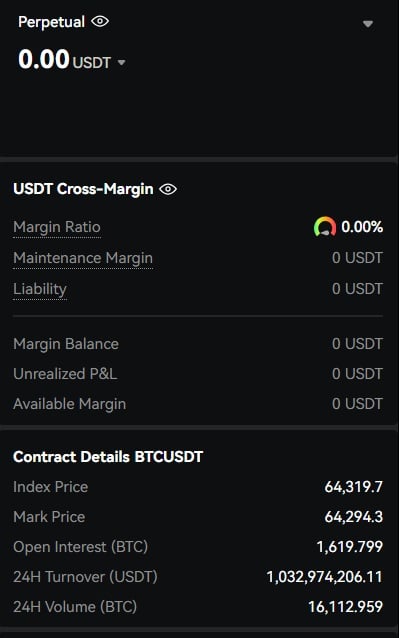
The USDT Cross-Margin panel shows the account’s Margin Ratio, Maintenance Margin, Margin Balance, Unrealized P&L and Available Margin. ApeX uses cross-margin, meaning available account equity collectively supports open positions. Liquidations are determined using the Mark Price, rather than simply the latest trade shown on the chart. There is good depths on the major coins.
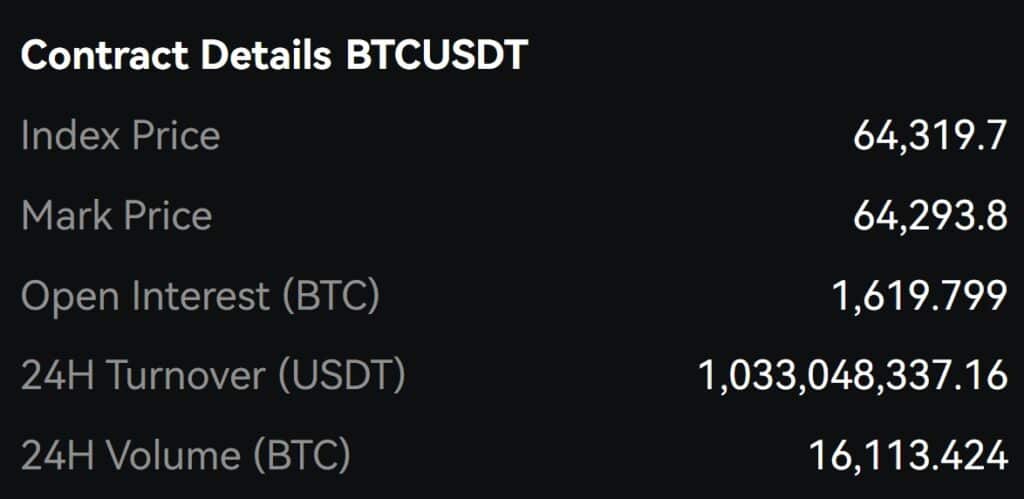
Traders should also check the Funding Rate/Countdown displayed above the chart when holding a position open. ApeX settles funding every hour: positive funding is paid by longs to shorts, while negative funding is paid by shorts to longs. Only positions open at the settlement time pay or receive funding.
To exit, close the position from the positions panel or submit an opposing Reduce-Only order for some or all of its size. Once closed, the realized P&L is reflected in the account balance.
Trading Perps on ApeX Omni
ApeX Omni keeps the actual trading workflow compact: fund the account, transfer collateral to Perps, choose a market, set leverage and size, then select an order type and direction. More advanced controls, such as conditional orders, TP/SL, Post-Only, and Reduce-Only are available from the same trading screen rather than requiring a separate interface.
FAQs
How much leverage does ApeX Omni offer?
ApeX Omni offers leverage of up to 100x, although the maximum available leverage depends on the individual perpetual market and applicable risk limits.
What are ApeX Omni’s perpetual trading fees?
Standard perpetual fees are 0.02% for maker trades and 0.05% for taker trades, with no additional gas fee for trading. ApeX also operates a VIP program that can reduce fees for qualifying traders.
What is the difference between Long and Short on ApeX?
Selecting Buy/Long opens a position designed to profit if the contract rises in price. Sell/Short does the opposite, allowing a trader to benefit if the contract falls. Perpetual contracts do not expire, although funding payments can apply while a position remains open.
Does ApeX Omni have stop-loss and take-profit orders?
Yes. ApeX Omni supports take-profit and stop-loss orders, including partial position exits and triggers based on Last, Mark or Index Price.

Why you can trust 99Bitcoins
Established in 2013, 99Bitcoin’s team members have been crypto experts since Bitcoin’s Early days.
Weekly Research
100k+Monthly readers
Expert contributors
2000+Crypto Projects Reviewed